 Login
Login




What are the definitions of the merge codes?
The link below will take you to a PDF guide of definitions for the Expert Agent merge codes.
Why is my brochure not uploading?
Please log a support ticket with the brochure document and property assigned, and one of our technicians can look why your document is failing.
Bare in mind that when you are creating a brochure through expert agent, it will be entered into a queue for converting the file into a PDF. This usually takes a minute or two to complete and you will be notified in your message box in expert agent when the process is complete. Please be aware that very rarely, the process will take 10 to 20 minutes to complete if there is a particularly high volume of agents doing the same process at the same time.
For any urgent brochures, please replace the {prop_price_text} merge code with the required price text. In Word, please select Save as, then choose PDF(*.PDF) from the Save As Type drop-down menu and save this to your desktop.
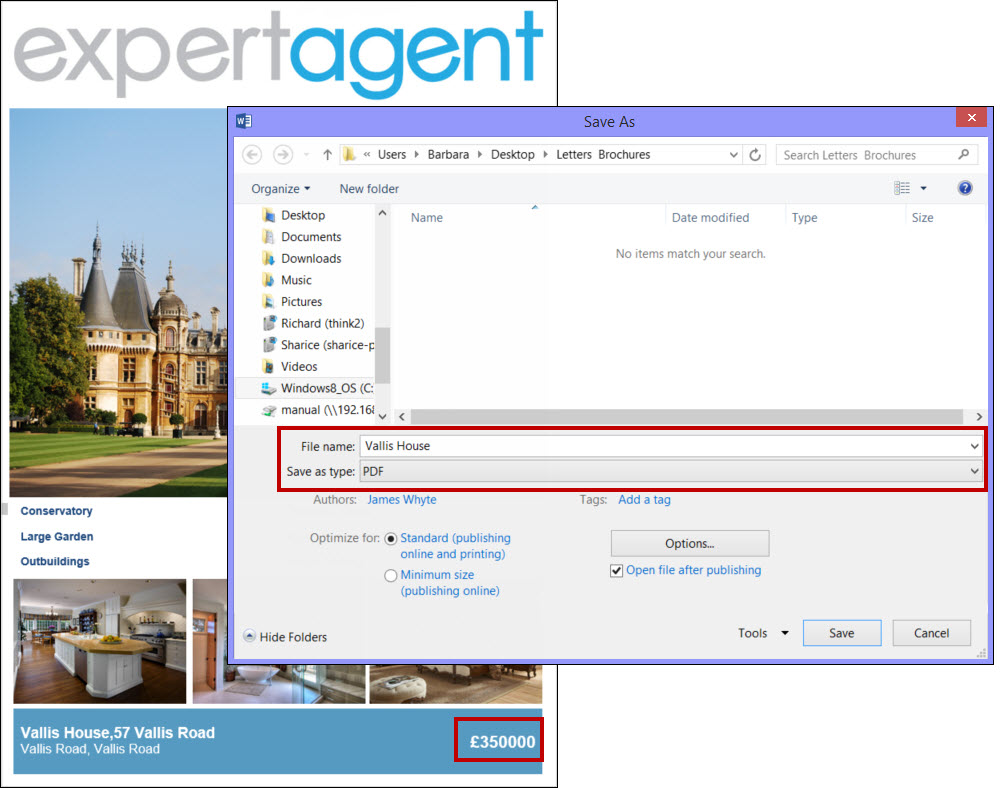
Once this is complete, you will be able to upload this to Expert Agent using the Upload PDF option on the Manual Upload tab.
When this has uploaded to the property form, it will be worth going back to the brochure tab and creating the brochure with the {prop_price_text} code left in (i.e. not deleted) because then, when there is a price change for the property, the template will automatically update the price.
How can I check which staff are logged in to Expert Agent?
You have to be a super user in order to be able to check which staff are logged in to Expert Agent.
Super users will get a 'Current Users' option in their Tools menu:
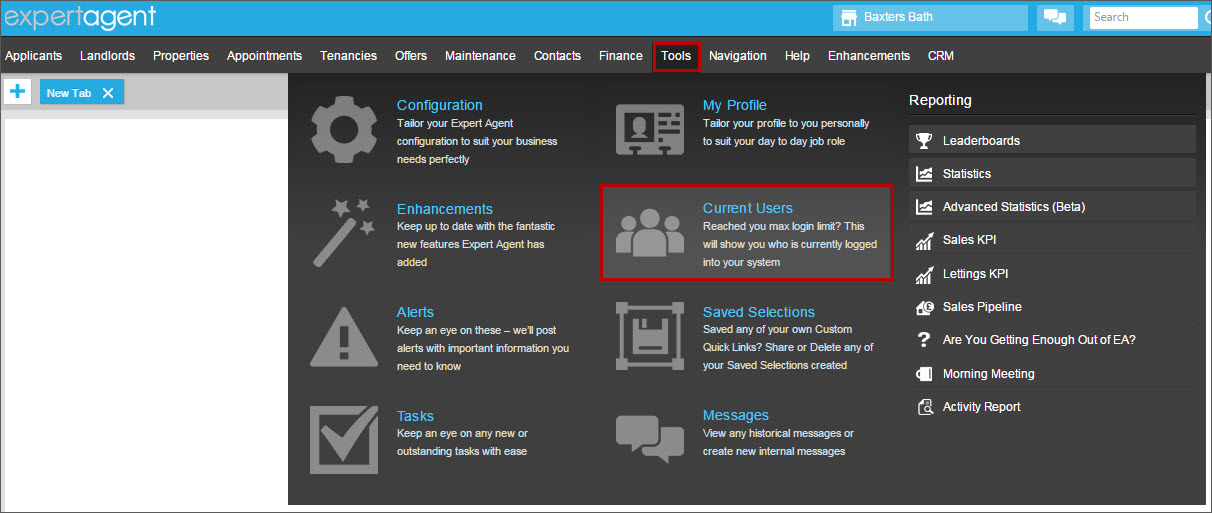
Clicking on this will show you the branch, names of staff who have logged in and the time at which they logged in:
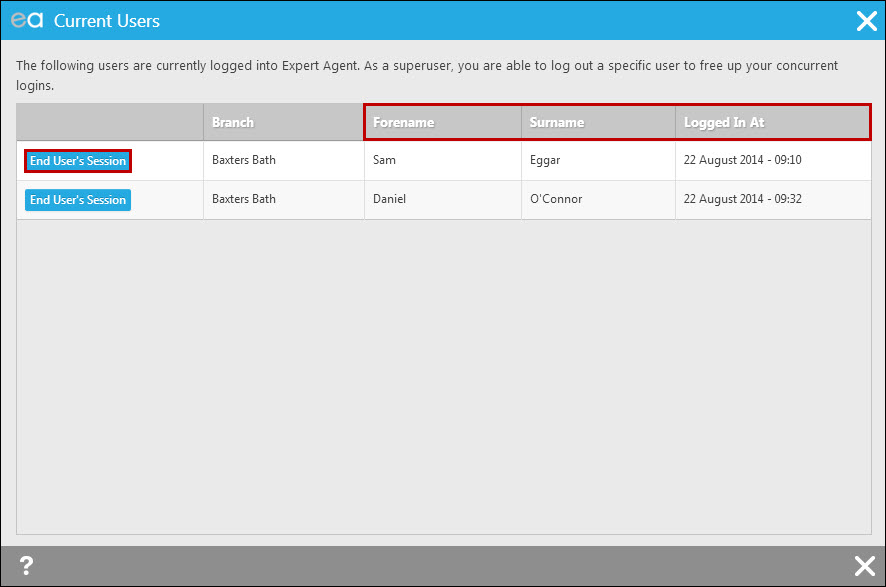
If appropriate, there is a button to end a user's session. They would lose any unsaved changes, so it is best to check they definitely aren't using Expert Agent before doing this.
Can I edit tenants on a tenancy record?
There is an edit button next to tenants where they are listed on the 'Tenants' tab of a tenancy record. This allows you to edit the payment reference, rent and deposit amounts, next rent due date and rent period only. If the reason you want to edit a tenant is because they are leaving a shared tenancy mid-term, then this isn't possible - see the What do I do if a tenant in a shared tenancy gives notice and moves out? FAQ for information on this.
Tel: 01225 303500 | Email: account.managers@webskyltd.com
Terms of Business | Cookie Policy | Privacy Policy | ZPG Modern Slavery Statement
Designed by the Expert Agent Design Department