 Login
Login



I have matched properties to an applicant however I cannot send the match e-mail?
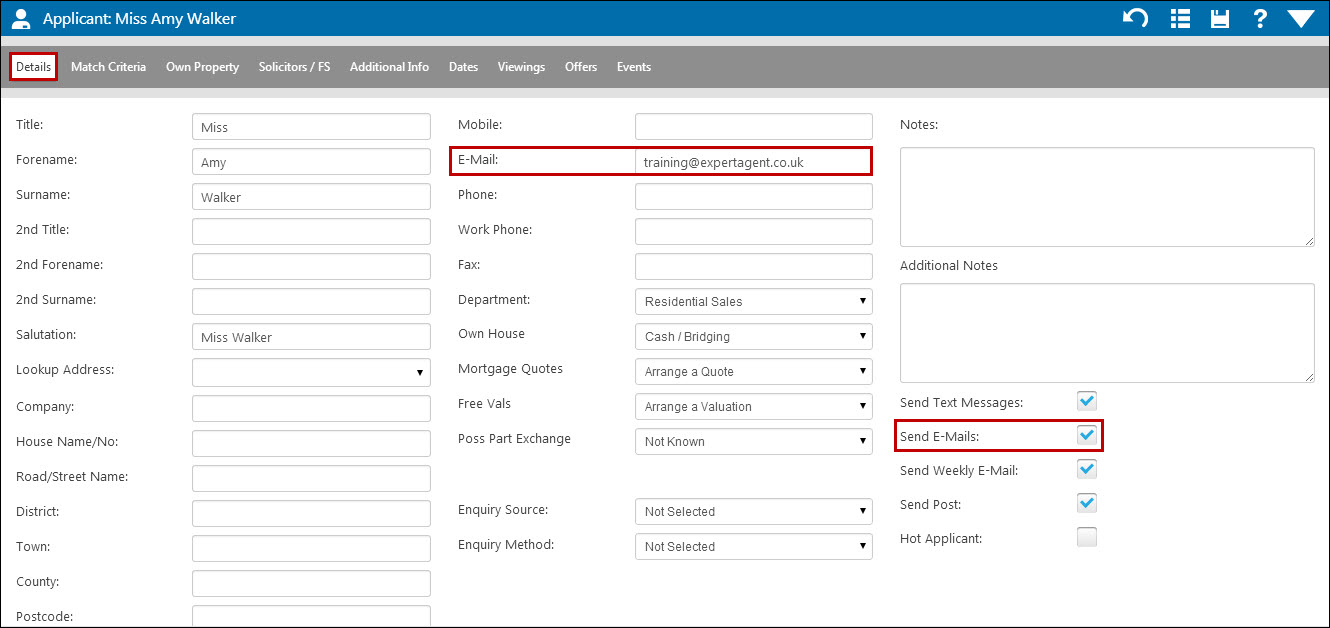
Make sure the applicant has a valid email address in the E-Mail field on the Details tab in their record, and also that the ‘Send E-Mails’ tick box is ticked:
We get exchanged or sold properties in our matches?
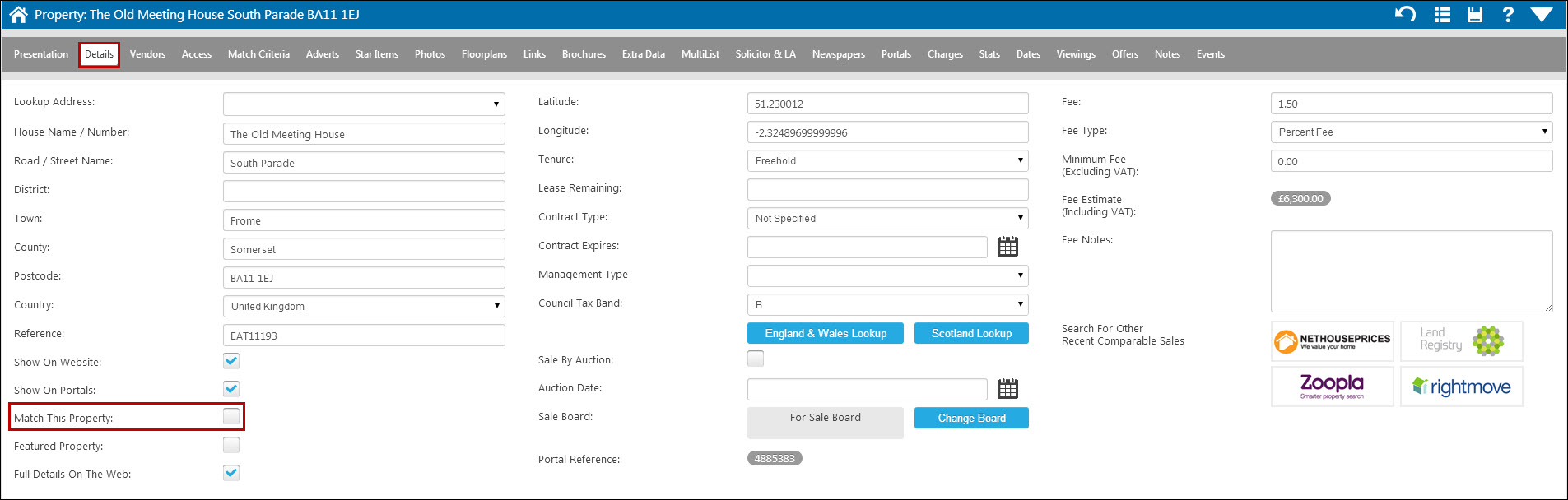
It is the “Match This Property” tick box on the Details tab of a property record that determines whether a property gets matched. So if you have marked a property as ‘Sold STC’ but have left it with “Match This Property” ticked, it will still match. You can un-tick this box on the Details tab of a property’s record, or when you make the status changes through your offer - if progressing your offers correctly, the system will ask you whether you would like to continue matching the property or not when you mark the offer as accepted.
This is the box on the Details tab of the property record:
For information on making the status change as you progress your offer, see the Accepting an Offer section.
Why are matches appearing for inactive applicants?
The system doesn't match against inactive applicants, so the results you’re seeing are from before the applicant was marked as inactive and they simply weren't processed or rejected. If you clear these results by going into the applicant’s outstanding matches and removing them, then you should find that no further matches are generated for the applicant:
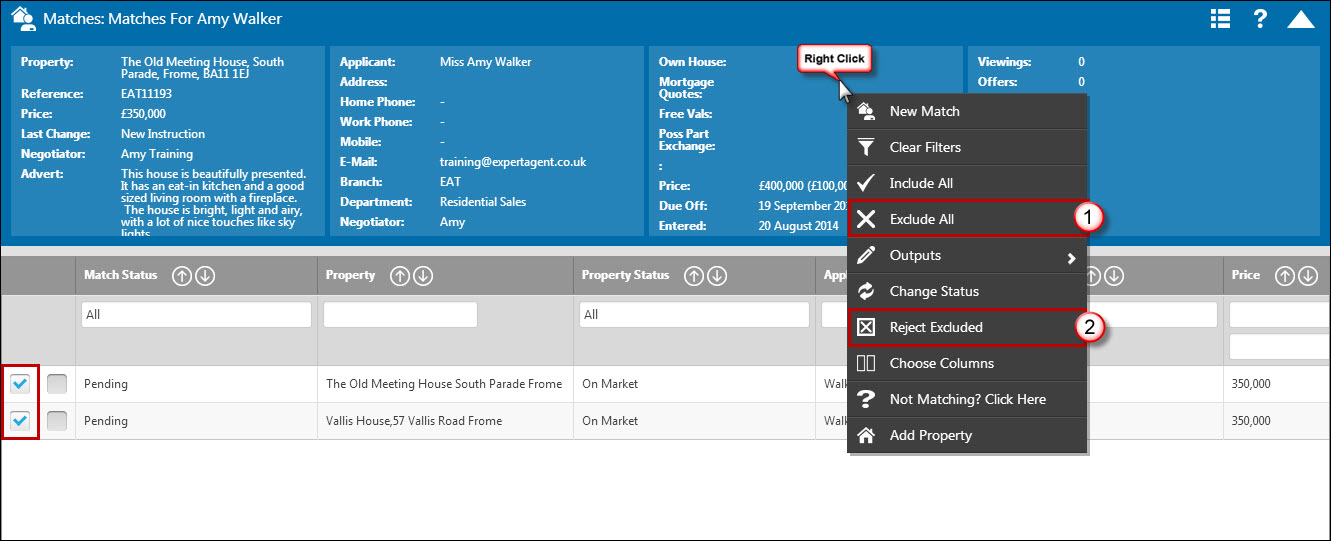
1. Right click and 'Exclude All'. This will un-tick all of the results on the left hand side.
2. Right click again and select 'Reject Excluded'.
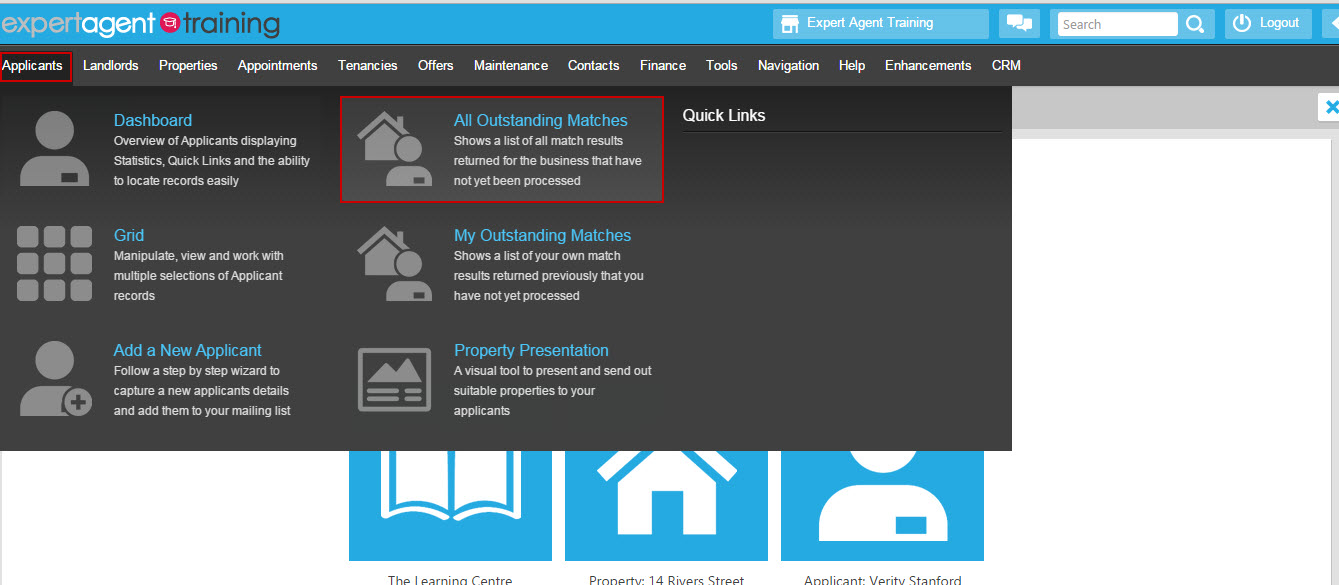
To review all outstanding matches in the system, hover the cursor over 'Applicants' (on the top menu bar) then select 'Outstanding Matches' – it’s a good idea to do this regularly as its very likely that some if not all of these matches were run some time ago, and therefore that some of the applicants have since become 'inactive on your system:
Also, make sure that when you’ve done a match you send it, either using the 'send email', 'send sms' or 'letters/lists' option, and that you ensure it is marked as complete and excluded upon completion from the match grid. The best way to do this differs slightly depending on how you choose to send your match results - see the Processing a Batch Match section for examples of every method.
When are the SMS viewing reminders sent out to Vendor and Applicant?
Unless you switch on auto reminders, nothing gets sent automatically. If you’ve switched this on in Configure, applicants will get a text message 2 hours before the appointment. Nothing goes to the vendor or landlords automatically. You can trigger a manual text message to either party in the viewing record. Another nice trick is that EA can send you a text message 20mins before the appointment to warn you to leave the office – again, switch this on in Configuration.
For more information on Viewing Reminders see the Viewing SMS Reminder chapter.
For more information on Viewing Confirmations see the Viewings Confirmation Setup chapter.
For more information on Negotiator reminders see the Personalising your Staff Profile chapter.
Tel: 01225 303500 | Email: account.managers@webskyltd.com
Terms of Business | Cookie Policy | Privacy Policy | ZPG Modern Slavery Statement
Designed by the Expert Agent Design Department