 Login
Login



How can I access my Viewings?
Viewings no longer have their own option in the top menu, they are now held under "Appointments". From the Appointments drop down, you can choose grid, or dashbaord (they both work the same as any other Dashboard or Grid within EA) and access your viewings from there.
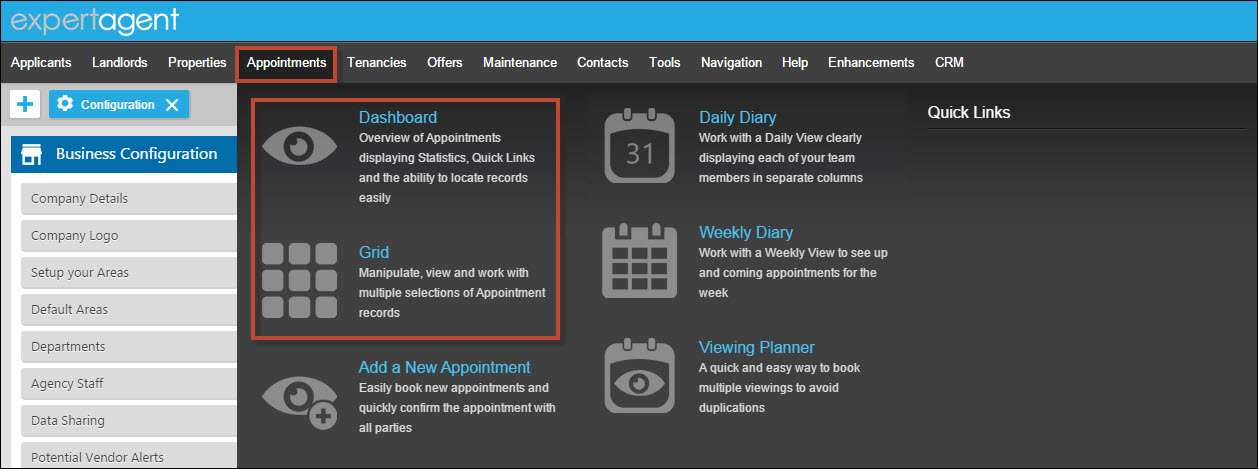
This has given you the option not only to view Viewings but also Property Inspections, Doctor Appointment, Staff Holidays, Safety Check etc.
Where has my Diary gone?
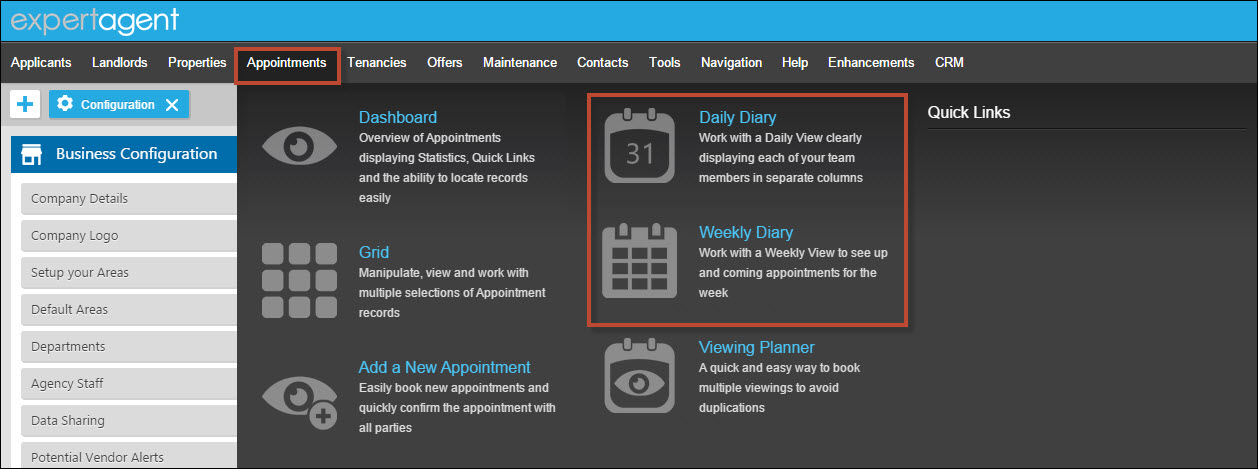
The Diary options (both Weekly and Daily) have been moved to the Appointments section in the top menu. This keeps all appointment sections of EA in once place.
How do I access my Viewings
Viewings no longer have their own option in the top menu, they are now held under "Appointments". From the Appointments drop down, you can choose grid, or dashbaord (they both work the same as any other Dashboard or Grid within EA) and access your viewings from there.
This has given you the option not only to view Viewings but also Property Inspections, Doctor Appointment, Staff Holidays, Safety Check etc.
Any quick links you've set up will appear on the right
Ideally, you need a Pending Viewings, Viewings to Chase, Viewings Today, Valuations to Chase quick link
Our Verity explains how to create these in her video below:
Watch the Video
Why is EA calculating VAT on the whole amount of my purchase invoice with uplift?
When adding an uplift to a purchase invoice, why is Expert Agent calculating VAT on the whole amount rather than just my uplift portion, whether the contractor is VAT registered or not?
As you are adding an uplift to the contractor’s original invoice you are essentially taking responsibility for the contractors invoice and then billing the Landlord separately. This is no longer seen by HMRC as a disbursement and so if you are VAT registered, VAT will need to be charged on the entire invoice rather than just the uplift portion. Please see this page from the Gov.uk website for further details.
How do I link text boxes in Microsoft Word?
Linking text boxes is used to reduce the editing process when creating WordLink brochures. This will transfer text from one text box to another automatically when that first text box is full.
We have created a short video tutorial for you to show you this process.
Tel: 01225 303500 | Email: account.managers@webskyltd.com
Terms of Business | Cookie Policy | Privacy Policy | ZPG Modern Slavery Statement
Designed by the Expert Agent Design Department