 Login
Login



How do I print using Chrome?
Unlike Internet Explorer, Chrome has its own print control functionality. This saves the need for yet another 3rd party layer - we use to use a product called Scriptx in Internet Explorer.
There are a couple of options to be aware of when printing from Chrome:
You need to set these up on each PC, particularly if you use HTML letters.
Ideally, click print on an HTML letter from EA.
The form below will appear
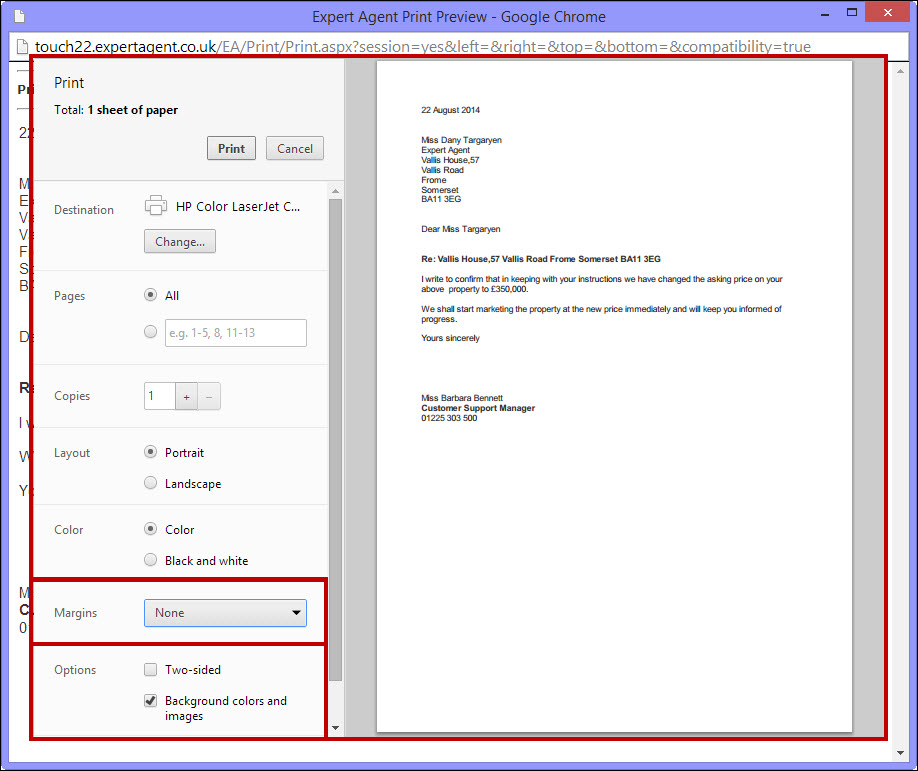
- In order for the margins in your Expert Agent template to print correctly you MUST ensure the margins are set to 'None' in the Print Preview.
- Under ‘Options’ you should ensure that 'Background colours and images' IS ticked.
How do I open PDFs in Chrome using Adobe?
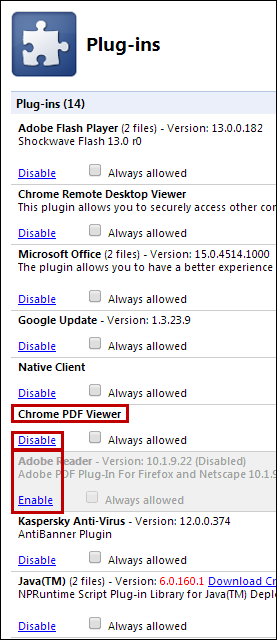
Chrome has a built-in PDF reader but the controls are slightly different than Adobe. You can choose to use the Adobe reader through Chrome if you’d rather continue using it. To do this, put the following into your Chrome web address bar:
chrome://plugins
Find Chrome PDF Viewer in the list and click ‘Disable’. Also find Adobe Reader/Acrobat and click ‘Enable’:
How can I set up Chrome to open all web pages automatically?
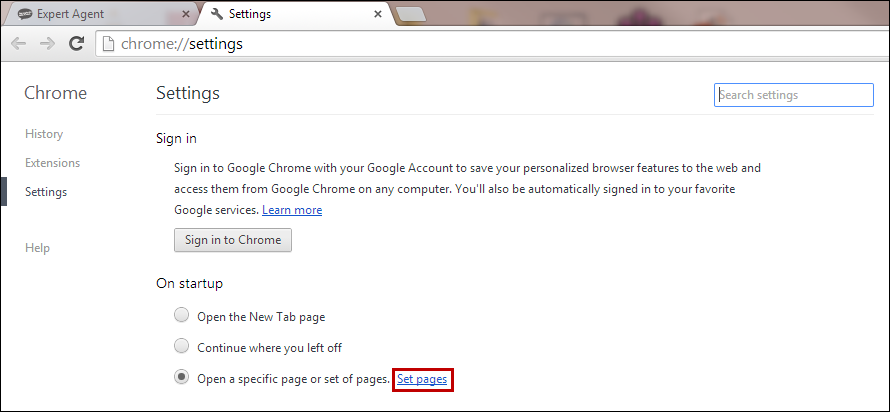
It’s a good idea to save pages you use on a daily basis, such as Expert Agent, as your Chrome start up pages - meaning that every time you open Chrome, those sites will open automatically for you.
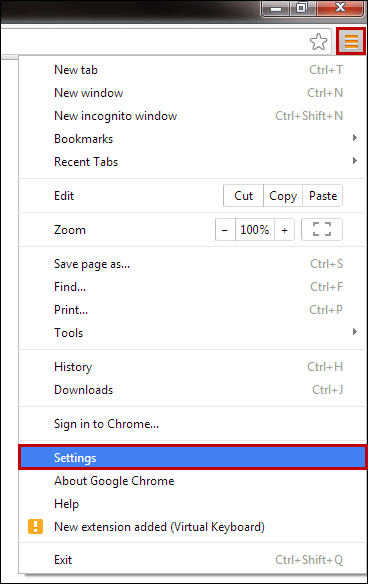
To do this, go to the menu icon in the right hand corner of Chrome and click ‘Settings’:
Click on the option to ‘Set Pages’:
To add Expert Agent, you’d type ‘loadbal.expertagent.co.uk’ against the ‘add a new page’ option and then click ‘OK’:
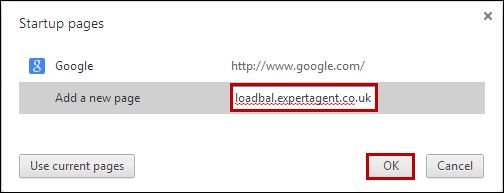
Repeat this process for any other pages you’d like to add, and then close when done.
How do i ensure AdBlock does not interfere with EA?
If you have installed AdBlock to block adverts from loading in Chrome, it will interfere with Expert Agent so you’ll need to turn it off for the Expert Agent site.
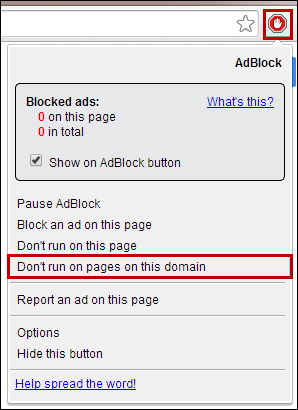
To do this, when logged into Expert Agent in Chrome, click on the red icon and go to ‘Don’t run on pages on this domain’:
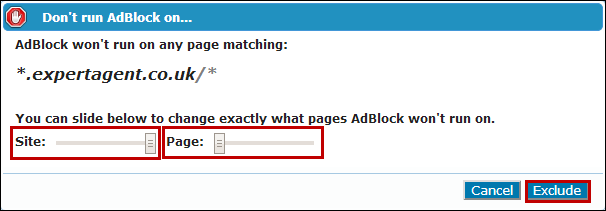
The following window will appear:
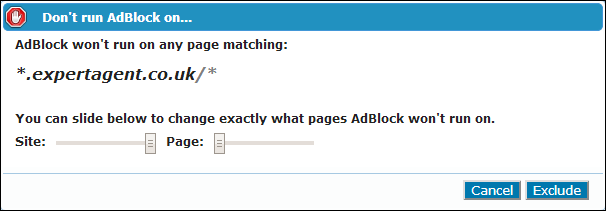
Simply ensure that the slider against the ‘Site’ option is fully to the right, the slider for ‘Page’ is fully to the left, and then click ‘Exclude’:
The icon in the right hand corner will go green, indicating that no pop-ups are being excluded on Expert Agent:

Tel: 01225 303500 | Email: account.managers@webskyltd.com
Terms of Business | Cookie Policy | Privacy Policy | ZPG Modern Slavery Statement
Designed by the Expert Agent Design Department