 Login
Login



How do I cancel a tenancy reservation?
A tenancy reservation is cancelled using the right click menu in a tenancy record:
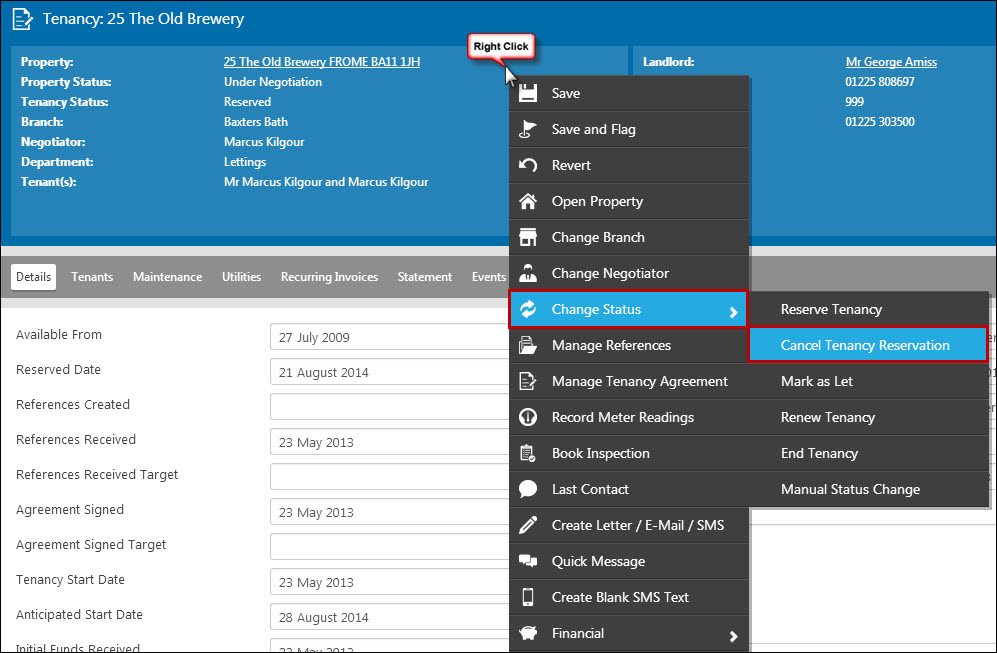
Simply hover over 'Change Status' and select 'Cancel Tenancy Reservation'. The following window will open:
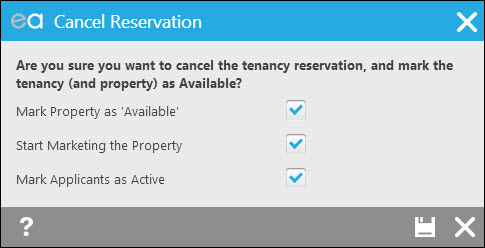
You can change the property status, start marketing the property and mark the applicants as active from here if you wish.
How do I assign records to appointments?
You can assign properties, applicants, landlords, tenancies and contacts to appointments in the diary as and when relevant to. The way you attach each type of record is the same, so we'll use a property example here but the same rules can be applied to attaching any record.
In your appointment form, click the plus symbol next to the relevant heading:
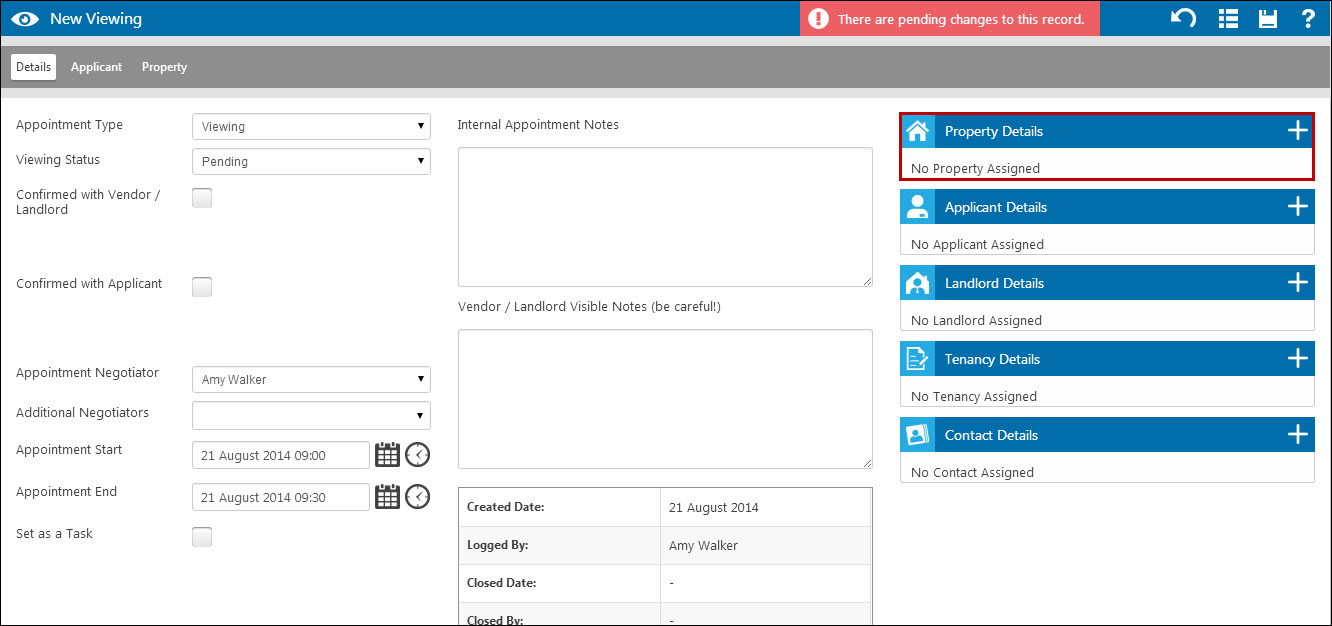
This opens a form from which you can attach a recently viewed record (1), search for an existing record (2) or create a new record (3).
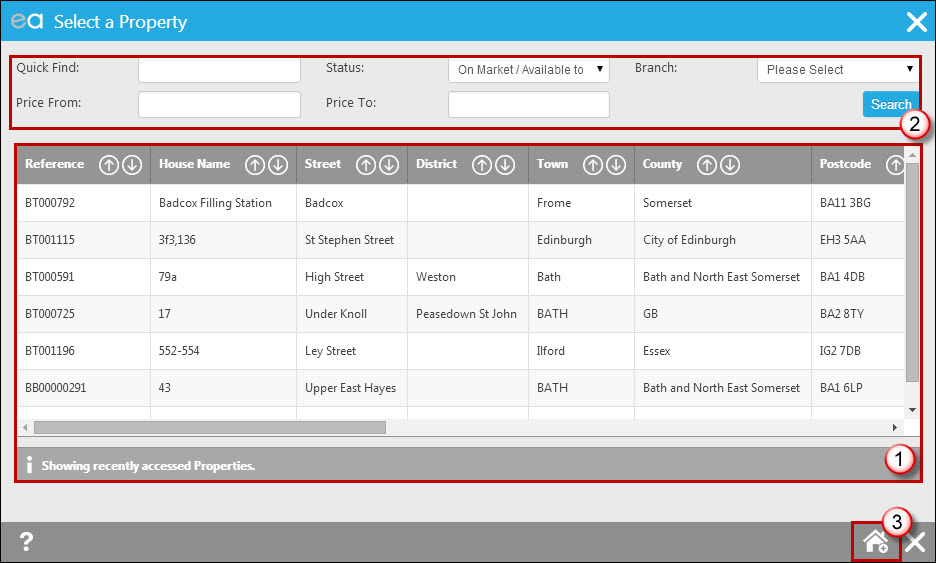
If you assign a recently viewed record or an existing record, all you will need to do is click on the record and it will take you back to the appointment with it now assigned. If you create a new record, the system will take you through the relevant wizard and then return you to the screen with the record assigned.
Can I clone a landlord to make them an applicant?
It is not possible to clone a landlord to make them an applicant, or vice versa, as the information required for each is very different - so you would need to create a new record.
Why are my landlord or tenant’s names merging incorrectly onto letters and tenancy agreements?
For the Landlord – On the property record under the 'landlords' tab, the names that appear at the bottom of the screen in the 'Landlords Names' field is the information that is merged onto the documents.
For the Tenants – On the tenancy record under the 'Tenants' tab, the names that appear at the bottom of the screen in the 'Tenants names (for correspondence)' field is the information that is merged onto the documents.
Tel: 01225 303500 | Email: account.managers@webskyltd.com
Terms of Business | Cookie Policy | Privacy Policy | ZPG Modern Slavery Statement
Designed by the Expert Agent Design Department