 Login
Login



Can I create Saved Selections from the Task Grid?
You can now create Saved Selection from the Task Grid.
They will show on the Action Menu of the Task Grid only.
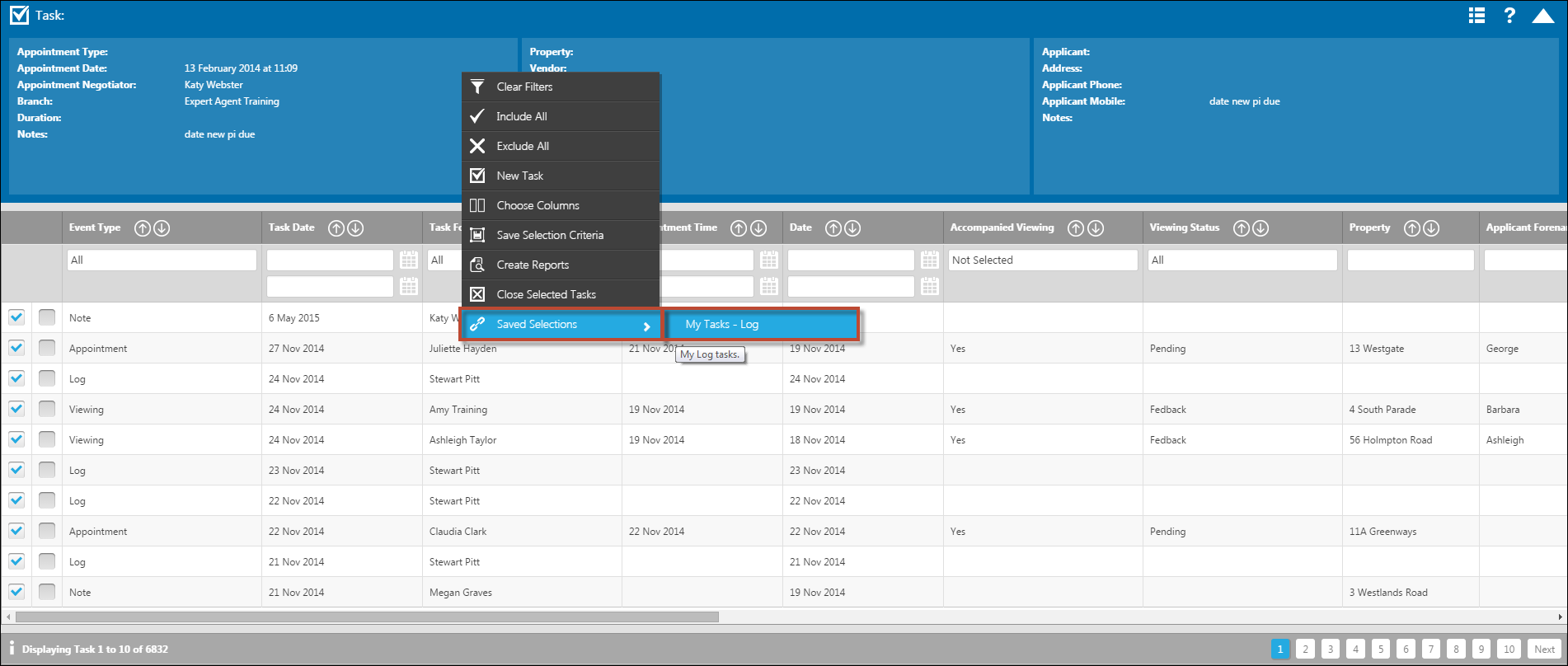
For further information on creating Saved Selection, please see the Personalising your Grids section of the Manual.
How do I display Lettings Fees on Rightmove and other portals?
Here's an example of the "Tenancy Info" link in Rightmove and the "Fees Apply" link in Zoopla.
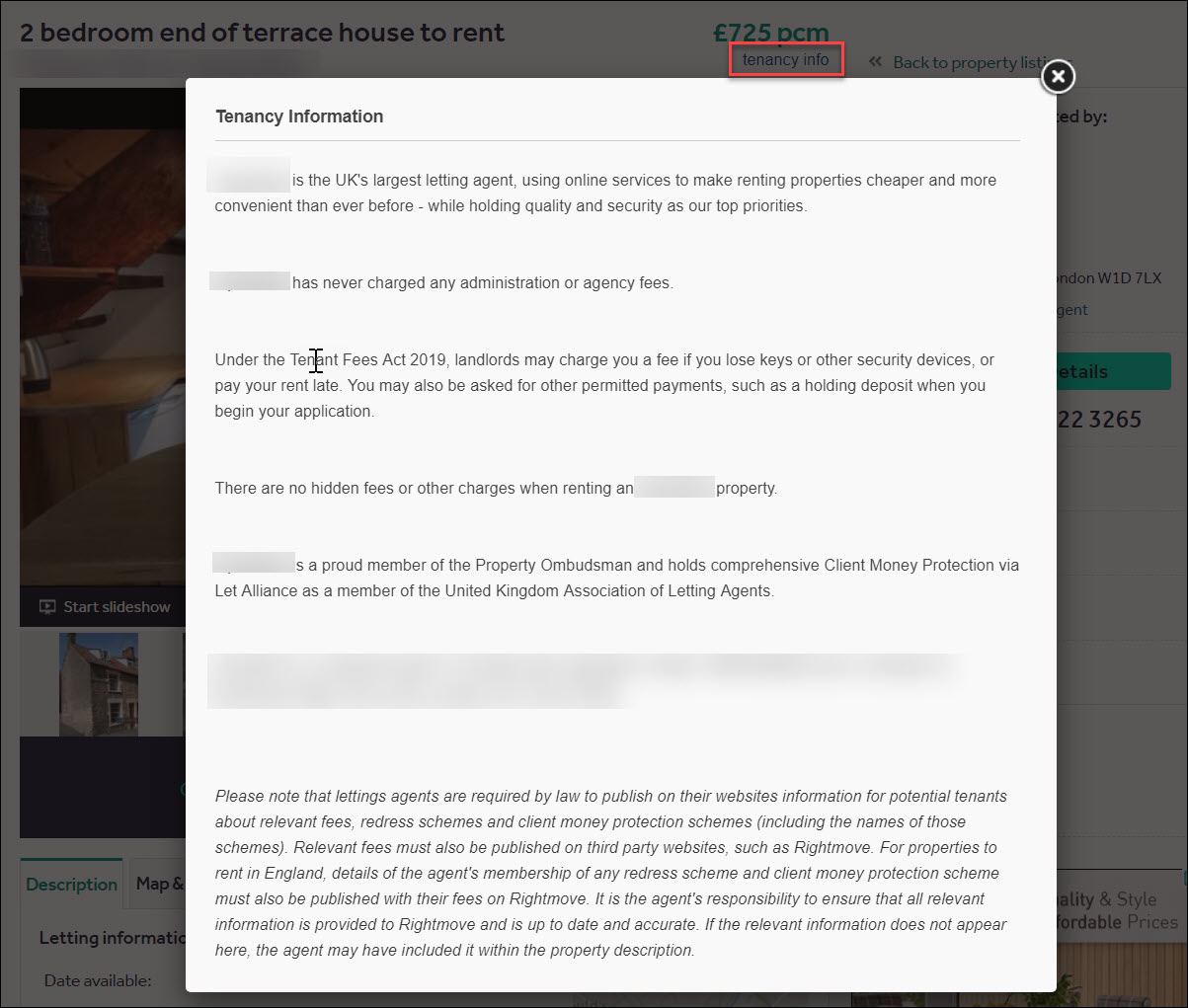

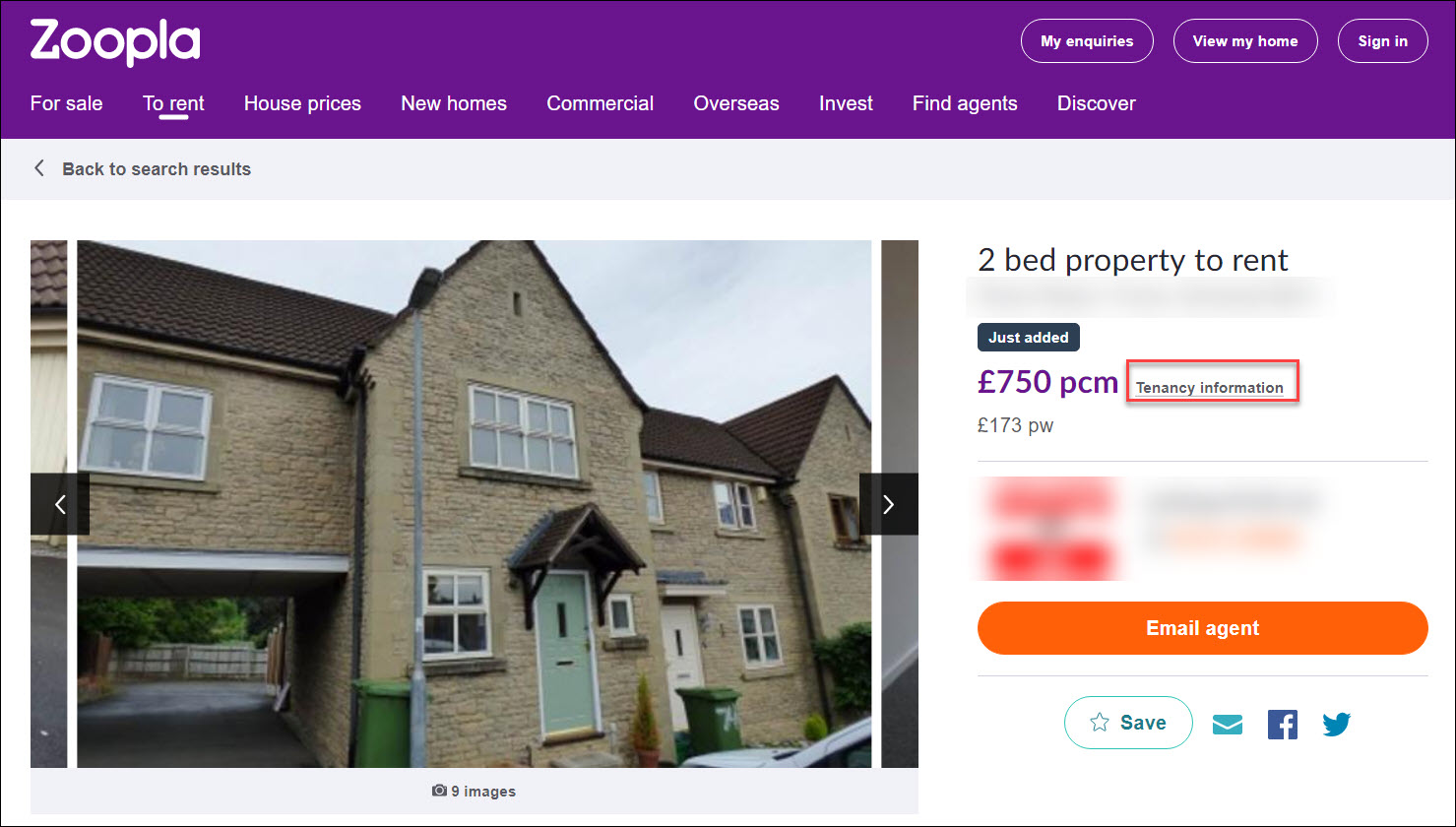
If you're uploading your properties from Expert Agent to Rightmove, Zoopla, or any other portal, each property much have details of your redress scheme and client money protection memberships, plus any permitted payments to comply with the Tenant Fees Act 2019 (in England, from June 1st) or the Renting Home (fees etc) (Wales) Bill (in Wales, when it comes into effect).
You can add this text individually on each Lettings property, on the details tab in the fields called Portal Tenancy Info:
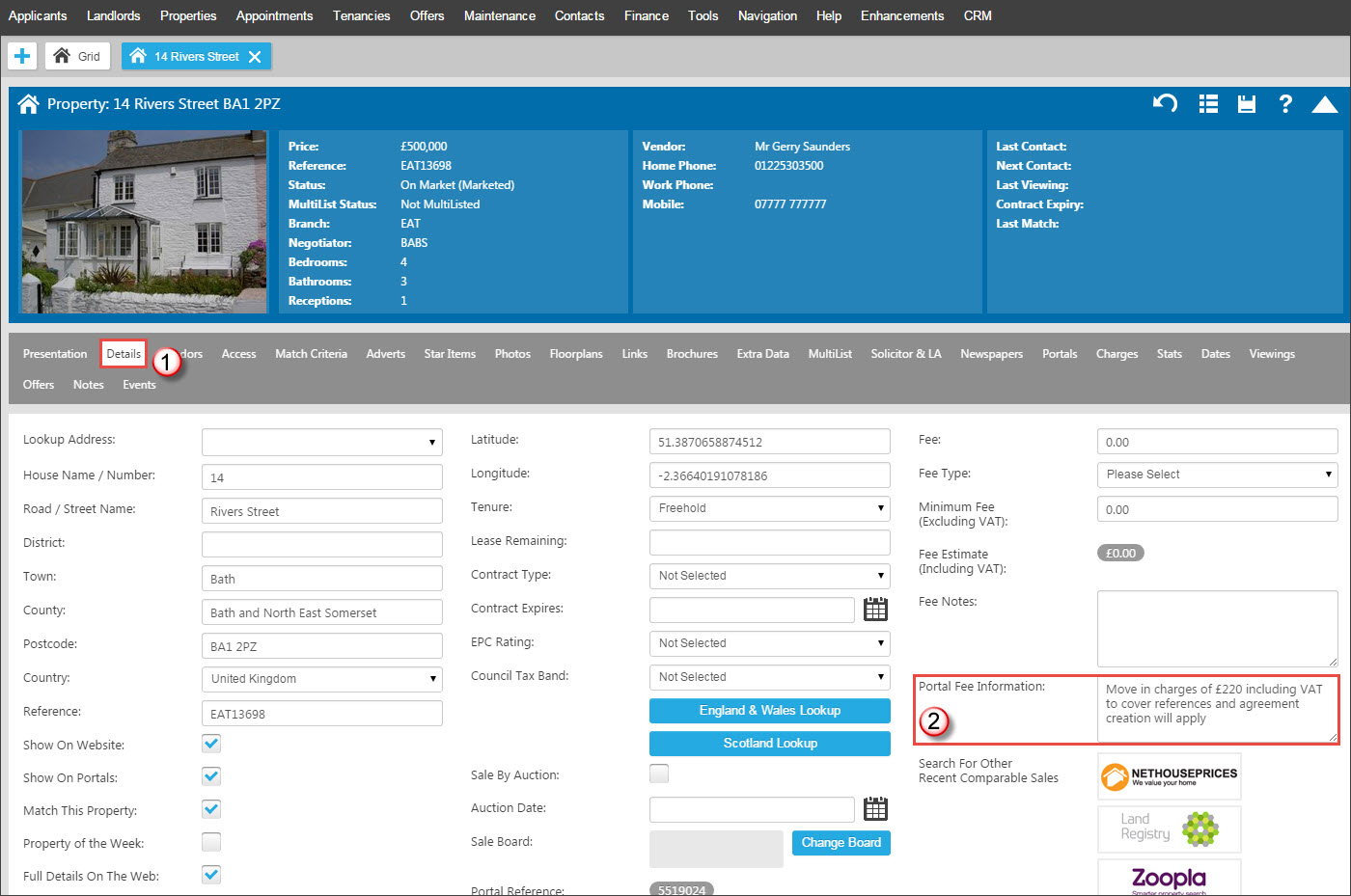
Or, if you would like to add the same text to all properties, you can do this from Tools -> Configuration -> Property Configuration -> Portals -> Options tab (see Portals for more information). There you can choose to apply the text to all Lettings properties that have no text set in the Portal Tenancy Info box, or by ticking the checkbox at the bottom, you can choose to apply the text to all Lettings properties, wiping out any text that has currently or previously been set. This cannot be undone once saved. If you need to amend the default text at any point, you can again choose to save this just for those properties currently using the default text, or by ticking the checkbox at the bottom, apply the changes to all properties, even if the default text has been overwritten or not applied in the first instance.
Upon saving either the property or the default text, the portals will be updated with the next text.
Offers FAQs
This section covers frequently asked questions relating to Offers and Sales Progression.
More:
How do I get the Note of Interest functionality enabled?
How do I add a new chain into Expert Agent?
How do I add an element to an existing chain?
What is the difference between Cancel Sale and Refuse Offer?
How do I add an element to an existing chain?
How would you need to add another element to an existing chain varies depending on whether it is a sale you are overseeing or not, and where it needs to go in the chain.
Full details and examples of all of the different options can be found in the Setting up Visual Sales & Chain Progression chapter.
Tel: 01225 303500 | Email: account.managers@webskyltd.com
Terms of Business | Cookie Policy | Privacy Policy | ZPG Modern Slavery Statement
Designed by the Expert Agent Design Department