 Login
Login


How can I add the same property for sale and to let?
In Expert Agent, if a property needs to be advertised as both for sale and to let, you will need to have two copies of the record. This is so that each record can sit in the correct department for matching purposes, to enable the portals to feature your property correctly, and to make sure you have all of the information specific to that department against the record (it would be impossible to have a sale price and rental value against the same property, for instance).
Once you have added the property once, the easiest way to get the second record is to clone it – you shouldn’t be going through the wizard twice.
To clone a property:
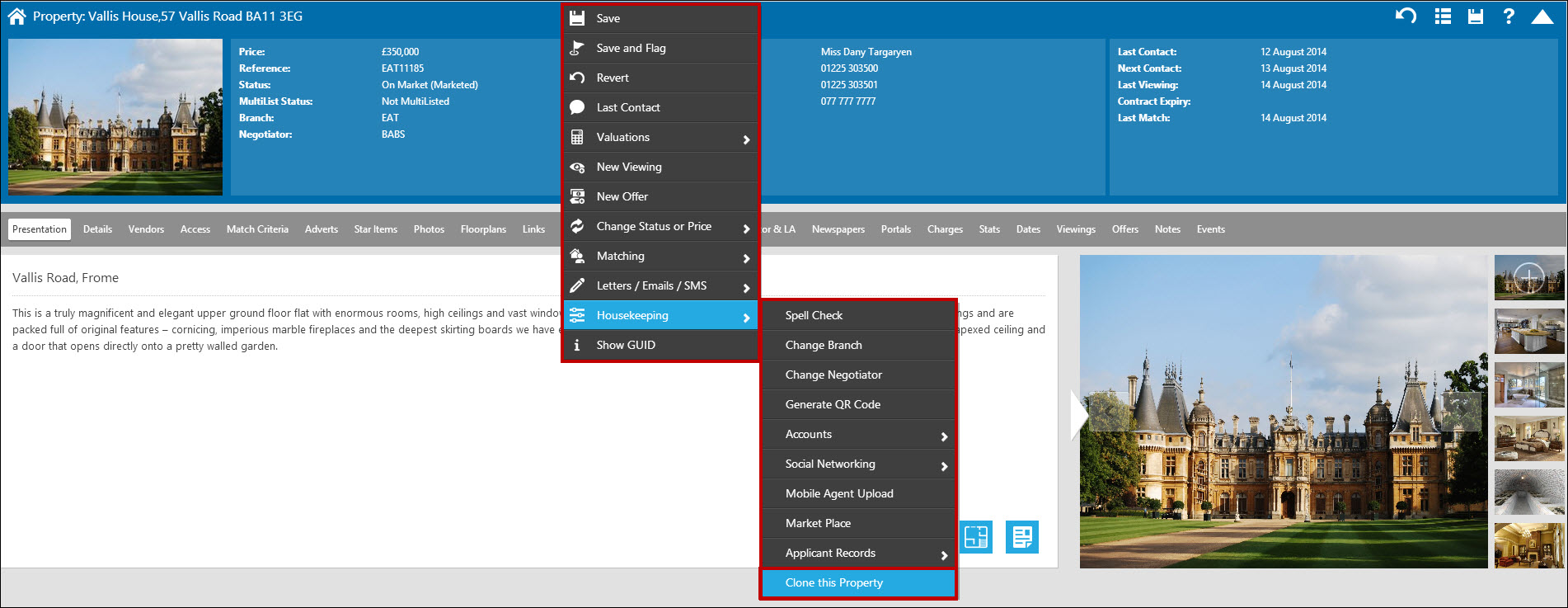
Open the property record, right click and select ‘Clone Property’ from the drop down menu.
The following screen will open:
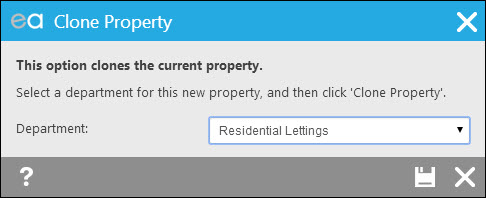
- Select the department you’d like the clone to be added to from your list of departments. In this example, I’ve added the property as a Sales property first, so I’d select Lettings for my clone.
- Click Save.
The new cloned property will display.
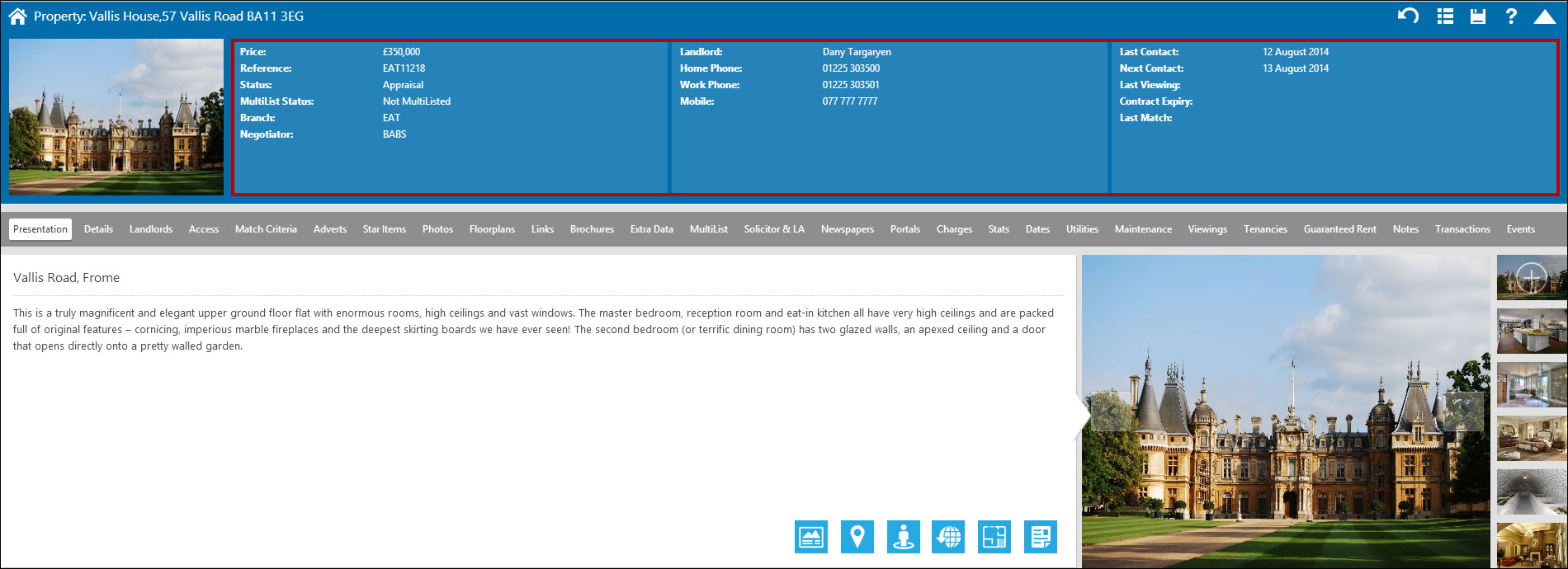
The new record won’t be live – for example here, the cloned property is marked as an ‘Appraisal’ ready to click into the property, add the lettings relevant details including the price, and then put the property live.
Why does my iPhone take photos upside down?
Before iOS 5, the only way to snap a photo with your iPhone was to tap the onscreen shutter button--always a somewhat awkward manoeuvre. But with iOS 5, Apple transformed the volume-up button into a shutter release, thereby making iPhone photography feel a bit more natural.
Just one problem: when you flip your phone around so the volume-up button is facing up, you end up with upside-down photos and videos.
The fix is inverted!
The remedy is fairly straightforward: keep the iPhone "right-side up" when snapping photos or recording videos--meaning with the volume buttons pointed down. You can still use the volume-up button as a shutter release.
You may also wish to check this Apple Support page: http://support.apple.com/kb/TS4180
If you already have a lot of upside-down media, there are plenty of image utilities (like Advanced Batch Converter) that can batch-rotate photos.
How does the Vendor login work?
For full details on how the Vendor Portal E-Mail is configured and how it displays please see the Vendor Portal Configuration chapter.
Why is my property not appearing on my website/ portals?
If your property is listed as “On Market” but IS NOT appearing on either/or your website or portals there are a number of areas in EA to check:
Check Status - is property On Market/Under Offer/Sold STC?
Check the Details tab – ensure the relevant marketing tick-boxes are ticked
Check Portal setup tab - check listed and uploaded date
- If not listed, click on “Add portal to upload property” and select from the list
- If the portal does not exist in the drop down list you will need to subscribe to them. Go to section “How do I setup a new portal feed” (link>?)
Check Property Details - Postcode and 1st line of address (Rightmove) Town (FAP)
Check Match Criteria - must have Type and Style set
Check Adverts - advert header and main advert has been completed
Check Price - RIGHT CLICK > Price change - Check price and prefix
[Only certain price prefixes will be accepted and displayed by the portals: Asking price, Offers in excess of, Offers in the region of, Auction guide price, Guide price, Shared Ownership, Price on Application. You can select the advanced edit function from here and enter a text prefix, but this will only be expressed on Adverts, Brochures and EA Powered websites, rather than the portals.]
**PRICE ON APPLICATION**
To ensure that a "Price on application" Property is uploaded to the portals correctly, please follow the steps below:
- Right click, select Price change from within property record
- Select "Price on application" and enter numeric price (Price will be hidden)
- Check advanced edit details, ensure that new price text doesn’t include any figures
International Properties- check that international code has been set – PORTAL SETUP > select portal and edit- selecting relevant country from this list
If the above is all in order it may be that the property has been rejected by the portal
If you feed to Rightmove, you will receive a report containing properties that have been rejected from the latest feed, and the reasons for their rejection
If you aren’t receiving this report, contact Rightmove and check which address this is being sent to
Once received, please refer to the report prior to logging a ticket with the support team
Tel: 01225 303500 | Email: account.managers@webskyltd.com
Terms of Business | Cookie Policy | Privacy Policy | ZPG Modern Slavery Statement
Designed by the Expert Agent Design Department